1-DOF flapping wing#
This example demonstrates a 1-DOF flapping wing kinematic system. It guides you through the project setup, resource files, and visualization steps to reproduce the results.
Overview#
This example simulates a wing structure undergoing:
Rotation about a single axis (z-axis)
Visualization of a 3D wing mesh loaded from an STL file
It includes all necessary configuration settings, time-varying angle inputs, and STL required to run and reproduce the simulation in FlapKine.
Files Included#
`project.zip`: A compressed archive containing both the full simulation project and the necessary resource files.
Upon extraction, the contents of project.zip are organized into two main folders:
`1_DOF_1/`: Contains the actual project setup, which can be loaded into FlapKine.
`resources/`: Contains supporting files required for Reproducing the project from scratch, such as STL meshes, angles time series, and plots.
Project Folder Structure#
The 1_DOF_1/ folder includes the following:
1_DOF_1/
├── scene.pkl          # Scene Class object saved as a pickle file
├── config.json        # Configuration file with simulation and rendering settings
└── data/              # Output directory for generated frames or videos
Resource Files#
The resources/ folder contains the required data for kinematic input and visualization:
resources/
├── angles/
│   ├── alpha_data.csv    # Rotation about the x-axis (all zeros)
│   ├── beta_data.csv     # Rotation about the y-axis (all zeros)
│   └── gamma_data.csv    # Rotation about the z-axis (time-series values)
│
├── stl/
│   └── wing.stl          # 3D mesh of the wing
│
└── angle_plot.png        # Plot of the rotation angles over time
Initial STL Orientation#
The wing.stl model is oriented such that:
The x-axis aligns with the wing span (length).
The y-axis aligns with the wing chord (width).
The z-axis corresponds to the wing thickness.
Simulation Details#
This is a single degree-of-freedom system, where only the rotation about the z-axis (gamma_data.csv) is active. The alpha and beta (which can be also seen by visualising the angles using .csv files in ressource) angles are zero throughout the simulation. Below is a plot showing the time-series data for each rotation angle given in the angles/ folder:

Figure: Time-series plot of the rotation angles (alpha, beta & gamma) used in this example.#
Running the Example#
Extract the project.zip archive to your desired directory.
Launch the FlapKine application and select Load Project.
Navigate to the 1_DOF_1/ folder and choose the directory.
The project will load with a pre-configured scene. Below is a screenshot of the loaded project:
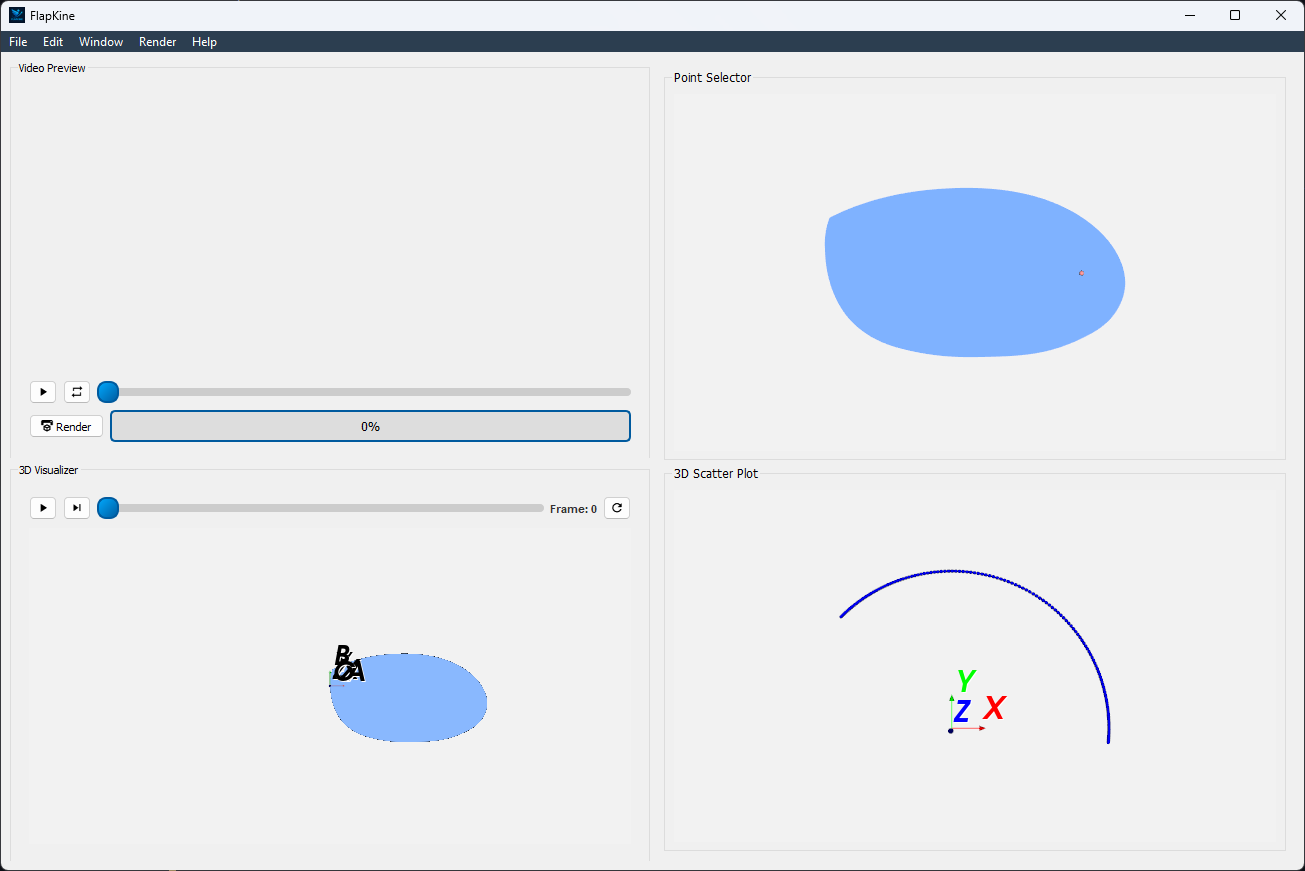
Figure: Screenshot of the project loaded in FlapKine.#
The project folder does not include the rendered video by default. To generate it, click on the Render button in the GUI. The simulation will be rendered and the output video saved under data/videos/.
Note
See the Project Editor Window section for more details about the GUI and its functionality.
Below is a short preview showcasing the rendered simulation output for this example:
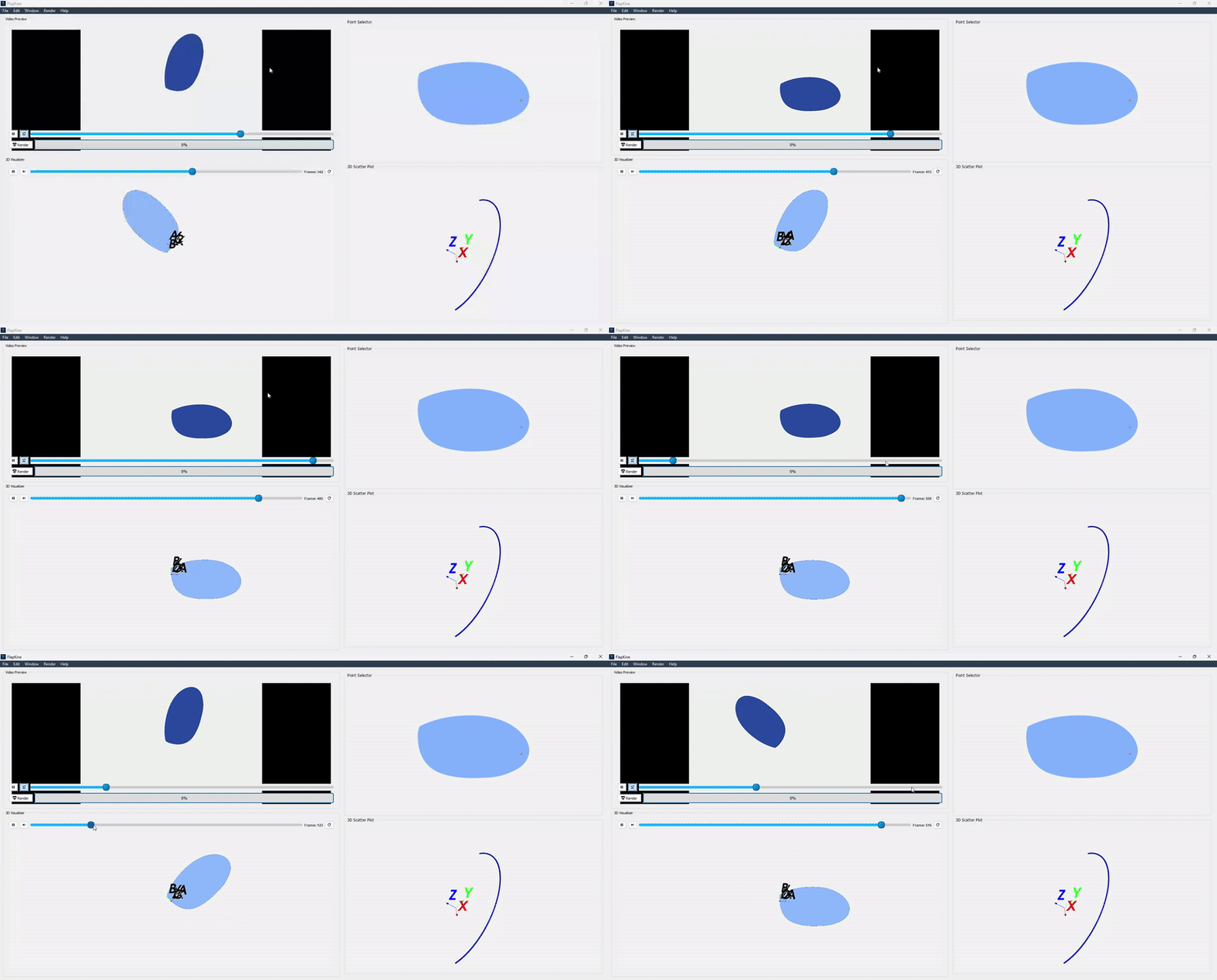
Figure: Rendered simulation preview after completing the scene setup and clicking the Render button in FlapKine.#
For higher quality or longer playback, you can render a full-resolution .mp4 video directly using the Render button. The video will be saved automatically in the data/videos/ folder within your project directory.
Reproducing from Scratch#
To manually recreate the above project from scratch:
Open FlapKine and select New Project.
Choose your desired destination folder, enter a project name, and click Save.
The Project Creator Window will open. This is where you can import
Sceneand change rendering configurations.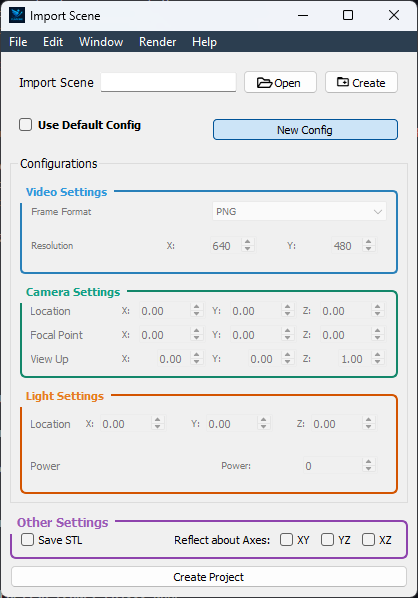
Figure: Screenshot of the project creator window in FlapKine.#
Start by loading the default rendering configuration:
Toggle the Use Default Config option.
For this example, since the rotation is about the z-axis, set the camera view accordingly:
Camera Position: (0, 0, 50)
Focal Point: (0, 0, 0)
Up Vector: (0, 1, 0)
Light Source Position: (0, 0, 20)
Light Energy: 1
Enable STL saving if needed.

Figure: Rendering configuration settings in FlapKine.#
To add a model to the scene, click the Create button under the Import Scene section. This opens the Scene Creator Window.
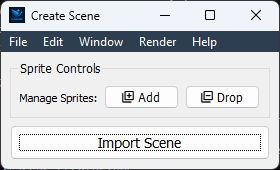
Figure: Scene creator window in FlapKine.#
Click Add to insert a new
Sprite.In the Sprite 1 section, click Create. This opens the Sprite Creator Window.
In the Sprite Creator:
Assign a name to your
3DObject.Load the STL file from the resources/ directory.
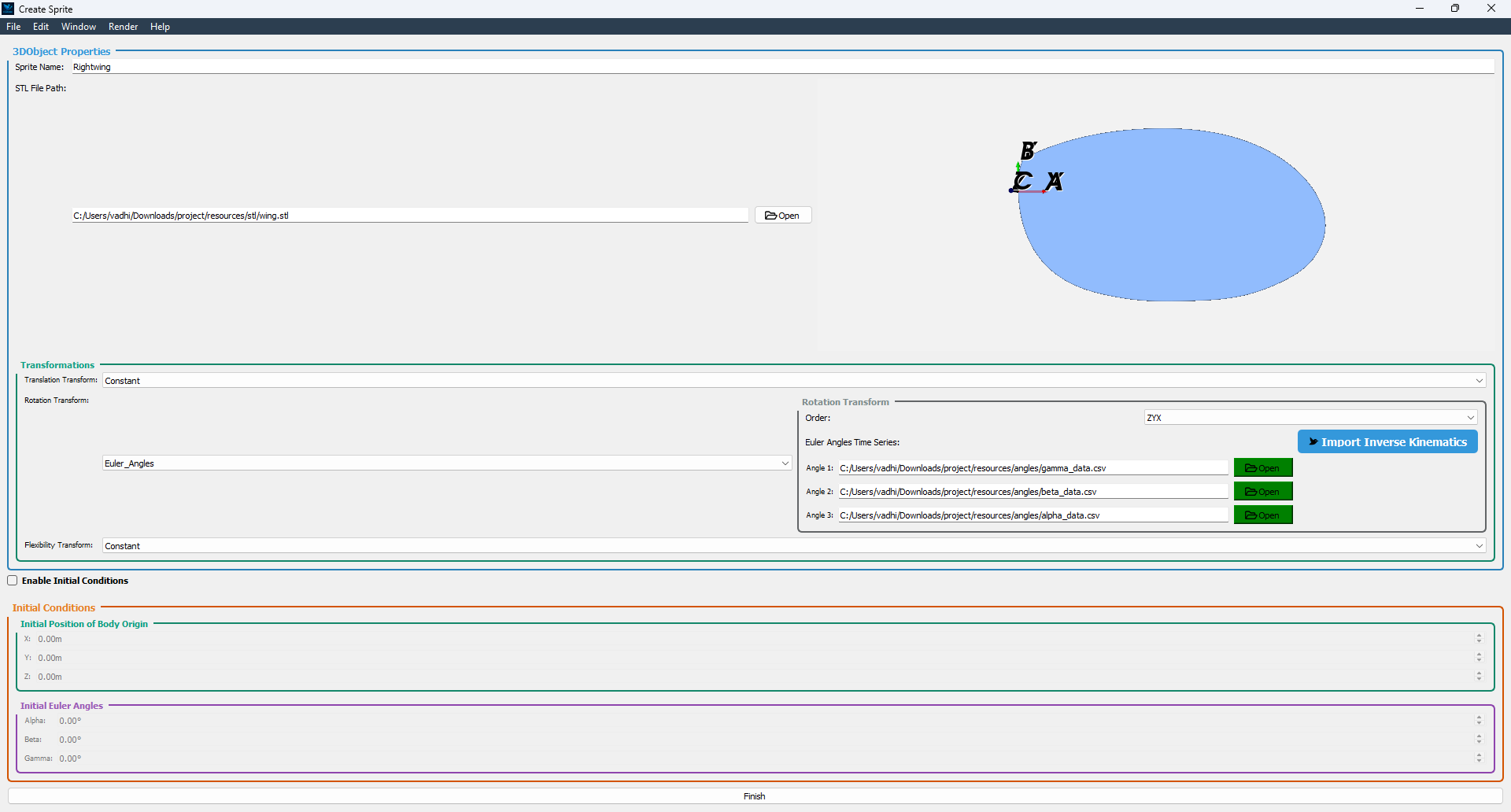
Figure: STL file loaded and Transformation set in the sprite configuration.#
In the Transformation section:
Set the Rotation Transform Type to Euler_angles
Set the Order to ZYX
For Angle 1, load gamma_data.csv, beta_data.csv and alpha_data.csv from the resource folder
Once configuration is complete, click Finish. You’ll return to the Scene Creator Window where the new sprite will appear in green, indicating success.
Click Import Scene to finalize the scene. You’ll be redirected back to the Project Creator Window, with the Create Scene button now showing green.
Finally, click the Create Project button. This will generate the same project structure and configuration as in the original 1_DOF_1/ folder provided in project.zip.
Download
Get the resource from: Download Link