Scene Creator Window#
What Is a Scene?#
A Scene is a collection of Sprites (2D/3D objects) that together form the visual environment for your project. Each Sprite can be:
Imported from an existing .pkl file
Created on the fly via the Sprite Creator Window
Note
See the Methodology section for more details on Sprite class`.
—
Overview#
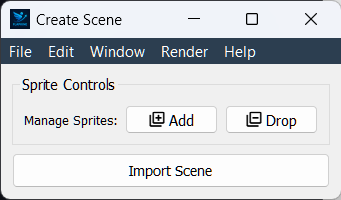
The Scene Creator Window is where you can assemble and configure the sprites that will populate your scene. It provides a user-friendly interface for adding, removing, and managing sprites. The window is divided into two main sections:
Sprite Management: This section provides controls for adding, removing, and importing sprites.
Sprite List: Displays the current sprites in your scene.
Sprite Controls: Provides options to add, remove, or import sprites.
—
Adding Sprites#
Add Sprite
Click the + Add button to append a new sprite entry to the list.
Drop Sprite
Click the – Drop button to remove the last Sprite in the list.
Import Sprite
Click Open to browse your file system and load a .pkl sprite file.
Create Sprite
Click Create to launch the Sprite Creator Window, where you can design and save a brand-new sprite.
—
Finalizing Your Scene#
Once your sprite lineup is complete, click Import Scene.
The assembled scene is passed back to the Project Creator Window for render configuration and project setup.