Inverse Kinematics Window#
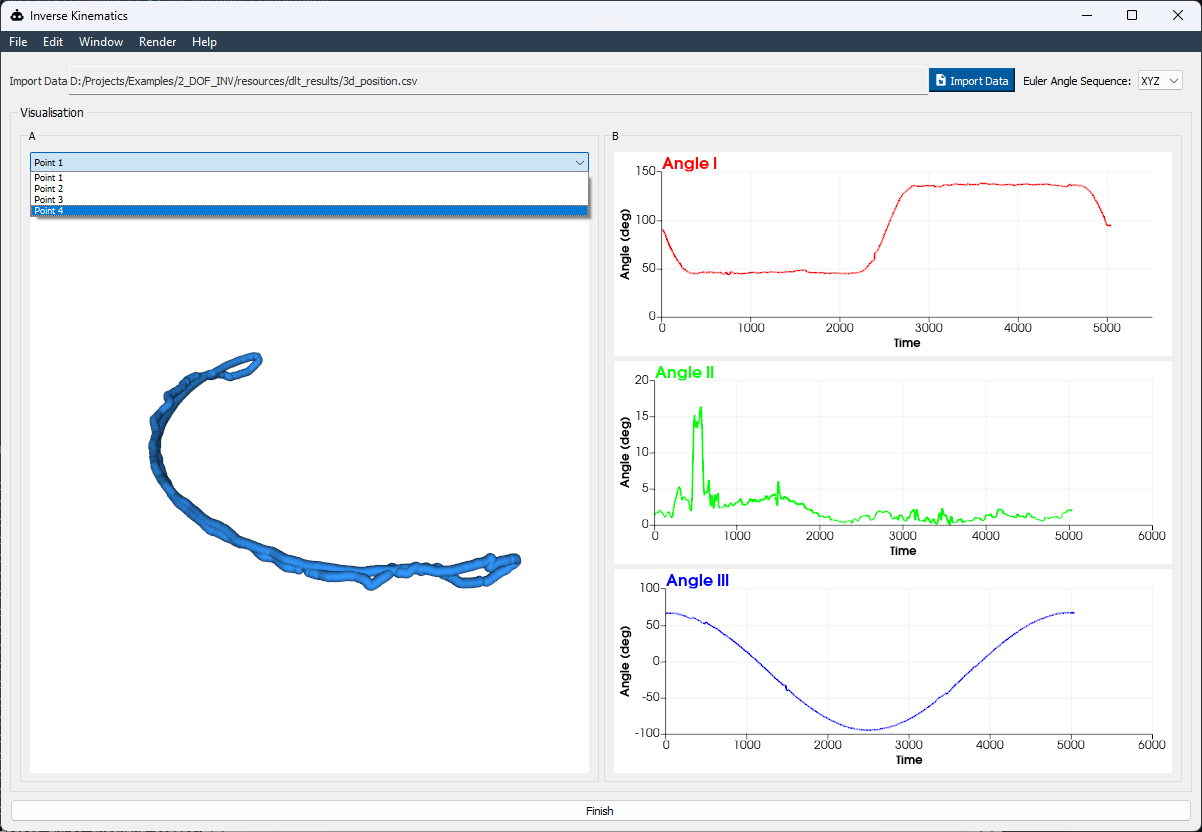
The Inverse Kinematics Window is designed to extract time‐series Euler angles from your wing’s 3D point data. Follow these steps to import, visualize, and export your kinematics:
—
FlapKine expects pre-computed 3D coordinates (e.g., from DLTdv [1]) rather than raw multi-view images/video. Use this workflow to import your landmark trajectories:
Prepare your CSV file The file must contain one header row and one data row per time step, with these columns:
pt1_x, pt1_y, pt1_z, pt2_x, pt2_y, pt2_z, pt3_x, pt3_y, pt3_z, pt4_x, pt4_y, pt4_z
1.23, 4.56, 7.89, 2.34, 5.67, 8.90, 3.45, 6.78, 9.01, 4.56, 7.89, 0.12
1.25, 4.58, 7.91, 2.36, 5.69, 8.92, 3.47, 6.80, 9.03, 4.58, 7.91, 0.14
...
pt1_x, pt1_y, pt1_z: X, Y, Z coordinates of point A
pt2_x, pt2_y, pt2_z: X, Y, Z coordinates of point B
pt3_x, pt3_y, pt3_z: X, Y, Z coordinates of point C
pt4_x, pt4_y, pt4_z: X, Y, Z coordinates of point D
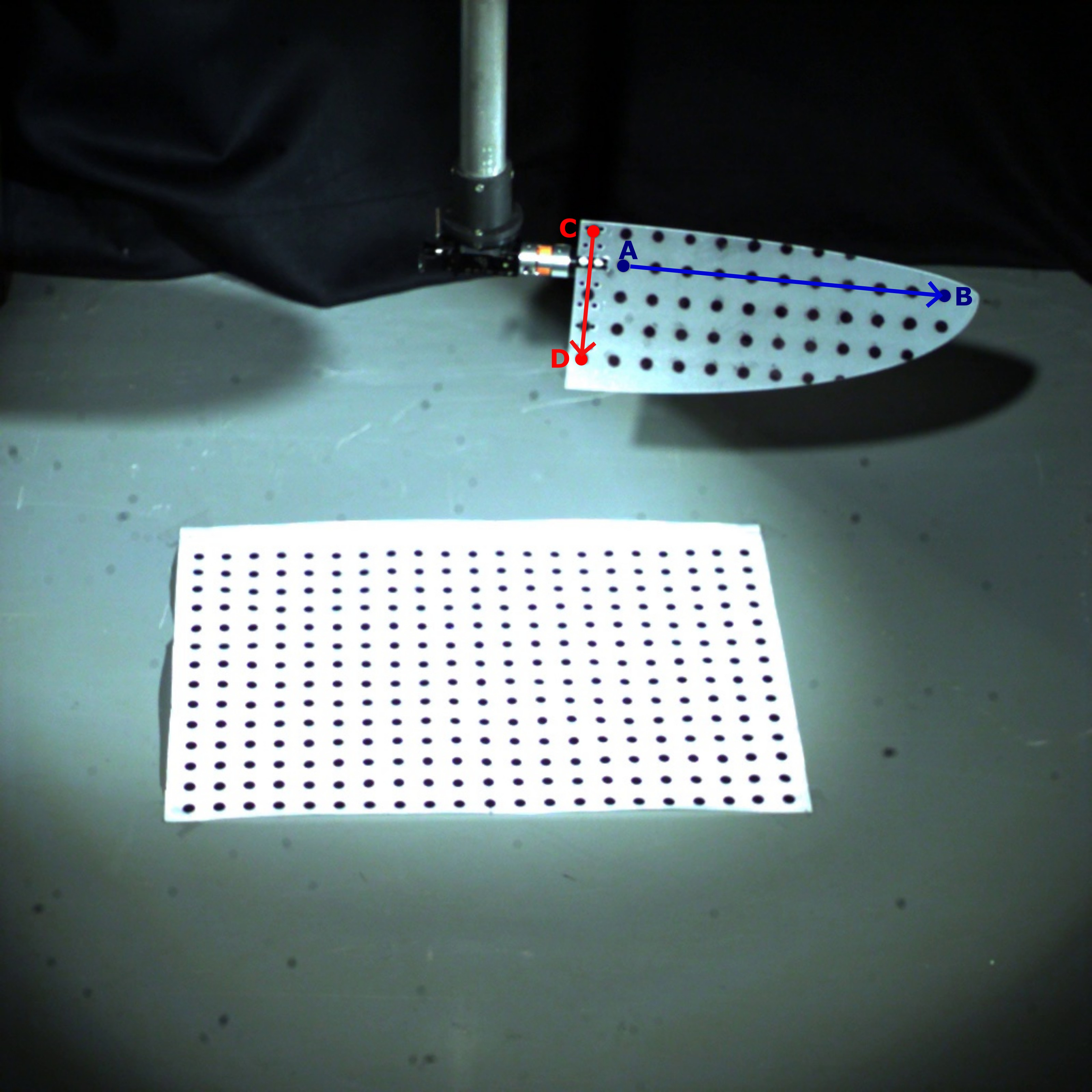
Points (pt1-4) correspond to the four markers (A–D) shown in the below image and processed in DLTdv.
—
These points were specifically selected as these are aligned along the two body axes (\(\hat{b_{1}}\) and \(\hat{b_{2}}\)), the other axis (\(\hat{b_{3}}`\)) is obtained by taking cross-product of these two. Then these are analytically solved to give euler angles. See Inverse Kinematics API
Choose Euler Sequence
In the Euler Order dropdown, pick your desired rotation sequence (e.g., ZYX, XYZ, etc.).
This order determines how Angle I, Angle II, and Angle III are computed.
—
Visualize Point Trajectories
On the Left Panel, select point A, B, C, or D to see its 3D trajectory plot over time.
Use this to verify tracking accuracy before computing angles.
—
Compute & Preview Euler Angles
Once the sequence is selected, the window auto‐calculates Angle I, Angle II, and Angle III at each timestamp.
Real‐time line plots appear below the 3D view for each angle component.
—
Export to Sprite Creator
When you’re satisfied with the results, click Finish.
The computed Euler angles and selected sequence are sent directly to the Sprite Creator Window for further processing.
—
References